

Where to find it
1
Open your chatbot
From Chatbots, click the chatbot you want to work on.
2
Open Settings
In the left sidebar, under Manage, click Settings.
3
Open a section under Appearance
Click the section you want to change to expand it.
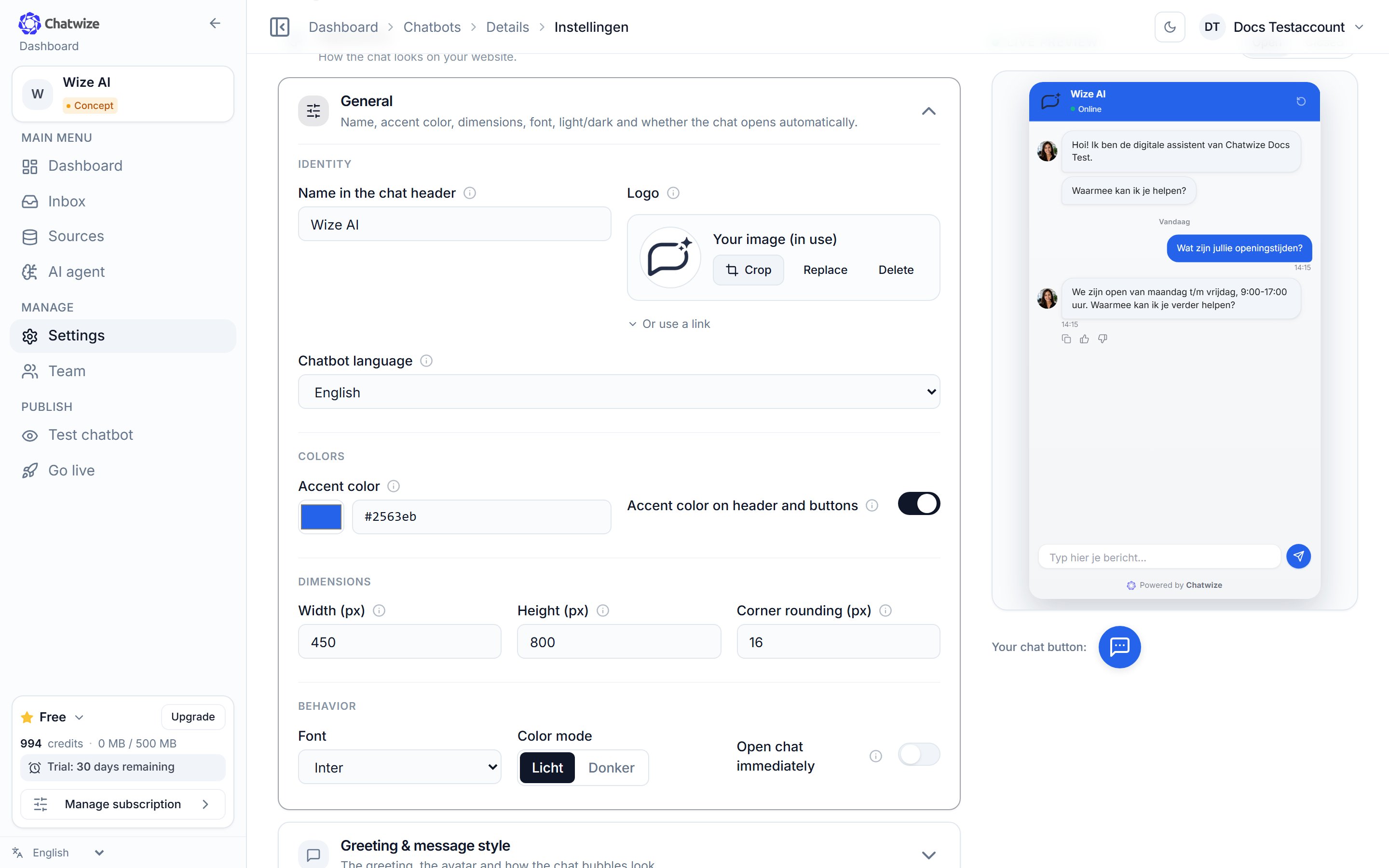
Settings → Appearance. Each row is a section you click to expand.
The sections under Appearance
General
General
Four blocks:
- Identity — logo, the name in the chat header and the chatbot language.
- Colors — accent color, whether it’s also used on the header and buttons, and light or dark mode.
- Dimensions — width, height, corner radius and font.
- Behaviour — whether the chat opens straight away on page load.
Greeting & message style
Greeting & message style
The first message visitors see and the avatar. Under Chat bubbles you set
the text size and the colors of the bot and visitor bubbles.
Example questions
Example questions
Clickable starter questions visitors see straight away.
Input field
Input field
The placeholder text, whether the send button is always visible, and whether
the field gets a border.
Times & dates
Times & dates
Show message times and date separators. Times follow the visitor’s local
clock.
Greeting bubble
Greeting bubble
The optional bubble that invites visitors to open the chat after a few
seconds.
What else visitors see
The Conversation group holds two sections that shape the conversation itself:- Citations & copying — whether the chatbot shows which source an answer came from, and whether visitors can copy an answer.
- Disclaimer — a short text visitors see first.