

Where to find it
1
Open your chatbot
From Chatbots, click the chatbot you want to publish.
2
Open Go live
In the left sidebar, under Publish, click Go live.
3
Open 'On your website'
Click On your website, enter your website address and click Generate
code. Your embed code appears; copy it.
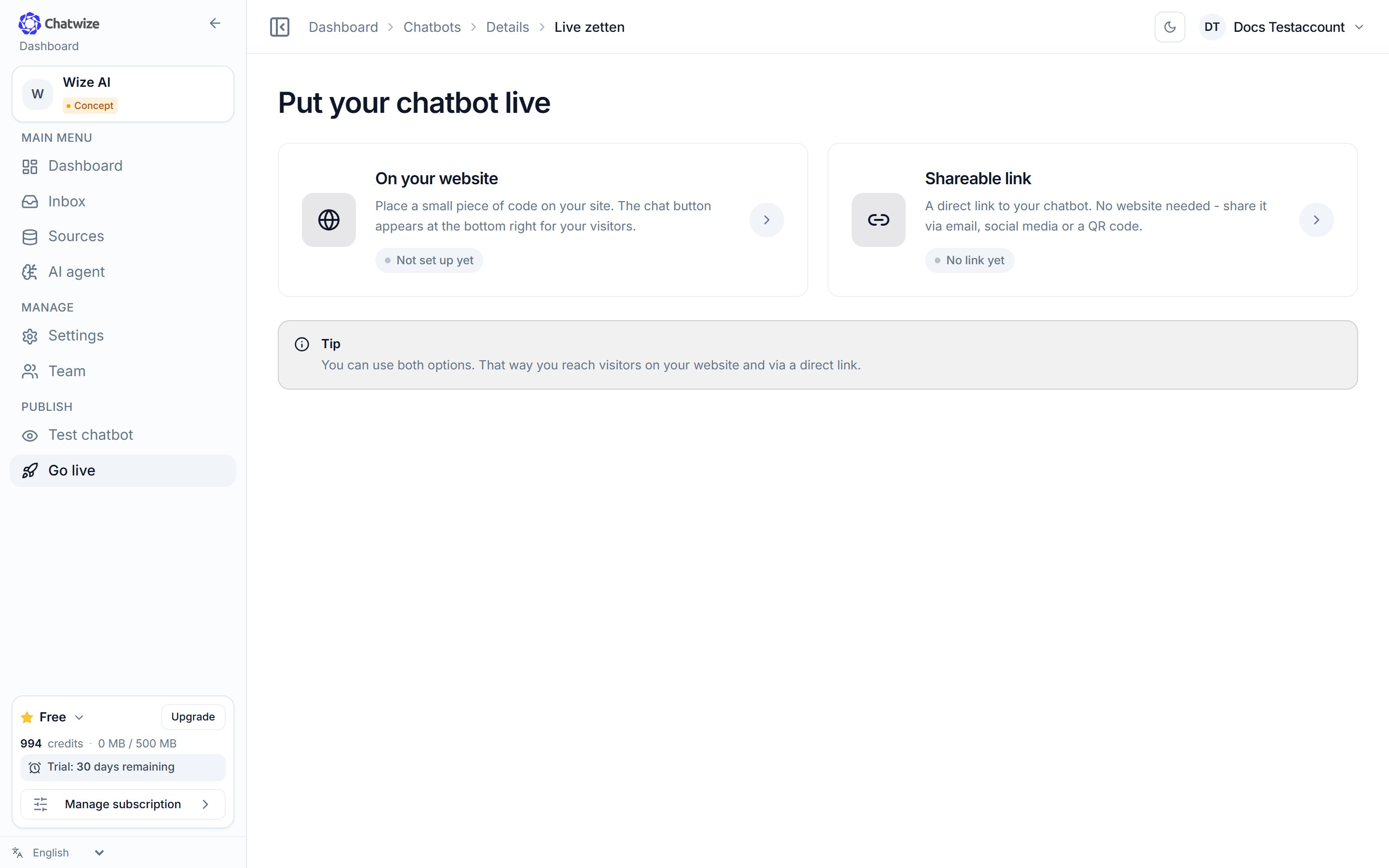
Go live → On your website is where your embed code lives.
Your code
The code looks like this, with your own key in place ofwk_YOUR_WIDGET_KEY:
Where to paste it
Paste the code just before the closing</body> tag on every page where you want
the chat to appear. Thanks to defer, the widget waits until your page has
loaded.
Your own HTML site
Your own HTML site
Add the code before the closing body tag in your template or layout file, so
it loads on every page.
WordPress
WordPress
Use a plugin that lets you insert code in the footer, or add it to your
theme’s footer template.
Shopify
Shopify
Add the code to
theme.liquid before the closing body tag in your theme’s
code editor.Webflow / Wix / Squarespace
Webflow / Wix / Squarespace
Use the site-wide custom code or footer section in your site settings and
paste the code there.
Google Tag Manager
Google Tag Manager
Create a Custom HTML tag with the code and trigger it on all pages.
Check that it works
Open your website and look for the chat bubble in the corner. Click it and ask a question. Not showing? Check that the code is on the page, that the website address you entered in Chatwize is correct, and clear any page cache.Shareable link
Prefer a separate chat page over a bubble? On Go live, use the Shareable link: a direct link to your chatbot you can share by email, social media or a QR code, which you can download right there. No website needed. To build that same chat page into a page of your own, an iframe variant is ready below the link.There is one shareable link per chatbot. Anyone who has the link can talk to your
chatbot. If it gets out, replace it on that same page; the old link stops working
immediately.
Restricting your chatbot
Under Settings → Access & management you decide who may use the chatbot and how intensively.Rate limit
Rate limit
Limits how many questions one visitor can ask in a row. Leave this on: it
keeps the chatbot available for ordinary visitors and stops one person using
up your allowance. Sharing the chatbot widely, for example via social media
or a QR code? Then pick a tighter limit.
Password protection
Password protection
Put an access code on the chatbot, with your own text on the lock screen.
Handy for an internal chatbot, a chatbot behind a customer portal, or one
you are still testing.