> ## Documentation Index
> Fetch the complete documentation index at: https://guidenl.chatwize.ai/llms.txt
> Use this file to discover all available pages before exploring further.
# Handover to a person
> Let visitors reach a real person, with optional office hours.
Visitors can ask to talk to your team; you get a notification and can take the
conversation over. You turn this on under **Settings**, in the **Access &
management** group.
## Where to find it
From **Chatbots**, click the chatbot you want to work on.
In the left sidebar, under **Manage**, click **Settings**.
Scroll to the **Access & management** group and click **Handover to a
person** to expand it.
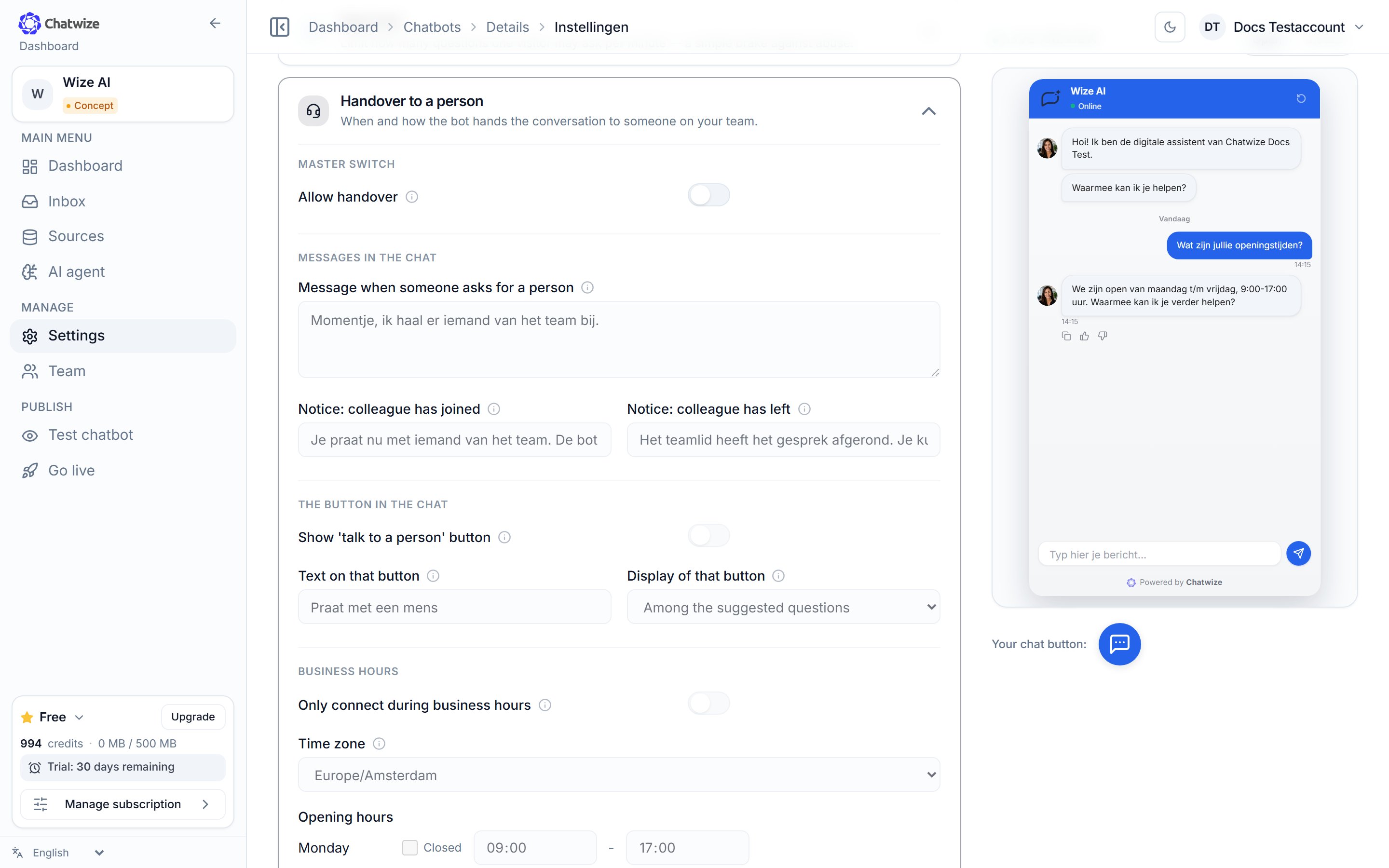 ## What you set
**Allow handover** turns the whole feature on or off. With it off there is no
button, no notifications, and you cannot take over a conversation yourself
either.
What the visitor sees when they ask for a person, and the notices when a
colleague joins or leaves the conversation.
The button a visitor uses to ask for a person. You set the text yourself; by
default it reads "Talk to a human". You also choose whether the button sits
separately below the suggested questions or among them.
Optional: only hand over during office hours. You set a **time zone** and,
per day (Monday to Sunday), whether you are open and between which times.
## Outside office hours
Outside your opening times there is no live handover; the visitor sees your
**offline message** instead. The question is still recorded and your
notifications still go out, so your team can follow up later.
Office hours can only *limit* when handover is offered; they never turn it on if
the main switch is off.
## Taking over a conversation
In the left sidebar, click **Inbox**. Conversations where someone is waiting
are marked.
Open the conversation and click **Take over the conversation**. At the top
you will see "Live chat active - you're answering now"; the AI is paused
while you are handling the conversation.
Done? Click **Hand back to AI** and the assistant picks it up again.
## Notifications
While you have the Inbox open, you get a **sound and a notification** when a
visitor asks for a person. To hear about it outside the dashboard too, turn on an
email notification or a webhook. See [Integrations](/en/integrations).
## What you set
**Allow handover** turns the whole feature on or off. With it off there is no
button, no notifications, and you cannot take over a conversation yourself
either.
What the visitor sees when they ask for a person, and the notices when a
colleague joins or leaves the conversation.
The button a visitor uses to ask for a person. You set the text yourself; by
default it reads "Talk to a human". You also choose whether the button sits
separately below the suggested questions or among them.
Optional: only hand over during office hours. You set a **time zone** and,
per day (Monday to Sunday), whether you are open and between which times.
## Outside office hours
Outside your opening times there is no live handover; the visitor sees your
**offline message** instead. The question is still recorded and your
notifications still go out, so your team can follow up later.
Office hours can only *limit* when handover is offered; they never turn it on if
the main switch is off.
## Taking over a conversation
In the left sidebar, click **Inbox**. Conversations where someone is waiting
are marked.
Open the conversation and click **Take over the conversation**. At the top
you will see "Live chat active - you're answering now"; the AI is paused
while you are handling the conversation.
Done? Click **Hand back to AI** and the assistant picks it up again.
## Notifications
While you have the Inbox open, you get a **sound and a notification** when a
visitor asks for a person. To hear about it outside the dashboard too, turn on an
email notification or a webhook. See [Integrations](/en/integrations).